


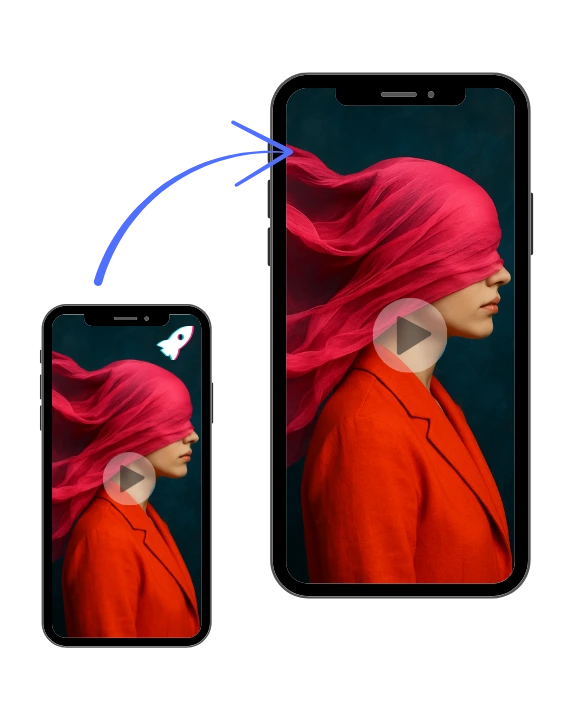
But when you play it back, there’s a problem. A distracting watermark or a persistent UI overlay is stamped right on your video, undermining its professional look.
It’s a frustrating situation that many creators face. You need a clean, polished video, but these unwanted elements get in the way. Fortunately, removing them is easier than you might think. You don’t need to be a video editing wizard to get a professional result. With the right approach and tools, you can clean up your recordings and make them ready for any audience.
This guide will walk you through the most effective methods for removing watermarks and UI elements from your screen captures. We’ll cover everything from simple edits to powerful AI-driven solutions that do the hard work for you.
Top Tools for Removing Video Watermarks
When you need a clean video without spending hours in a complex editor, specialized tools are your best option. These platforms are designed for one purpose: to remove unwanted objects from your video seamlessly. They offer the fastest and most reliable way to erase watermarks and other distractions.
1. Video Watermark Remover: The Best Overall Solution
For a powerful and user-friendly experience, our top recommendation is an AI-powered tool built for efficiency. The best platforms analyze your video and intelligently remove the watermark while reconstructing the background behind it. This leaves you with a natural-looking video that appears as if the watermark was never there. A great tool like a dedicated Video Watermark Remover is perfect for creators who need to clean up different types of logos, text, and timestamps from their screen recordings quickly.
Why It Stands Out:
* AI-Powered Precision: The tool doesn’t just place a blurry box over the watermark. Its AI algorithms identify the unwanted element and rebuild the pixels underneath, preserving the original quality of your video.
* Ease of Use: You don’t need any technical skills. The process is typically as simple as uploading your video, highlighting the watermark, and letting the tool process it.
* Speed and Efficiency: What could take a long time in traditional editing software is often done in just a few minutes.
This tool is the ideal choice for most users, from marketers preparing a product demo to educators creating tutorial videos. It delivers consistent, high-quality results without a steep learning curve.
2. Sora Watermark Remover: For Specialized AI Watermarks
Sometimes, you might be dealing with watermarks from other AI tools or more complex, semi-transparent logos. For these specific cases, you need a solution trained to handle modern watermarking techniques. The Sora Watermark Remover is an excellent choice for tackling these advanced challenges. It focuses on the unique patterns and artifacts left by AI-generated content and other sophisticated branding.
Why It’s a Great Specialized Tool:
* Handles Complex Watermarks: It’s specifically designed to work well on videos that have dynamic or subtle watermarks that other tools might miss.
* Maintains Video Integrity: It removes the overlay while ensuring the rest of the video remains sharp and clear, which is crucial for high-resolution screen recordings.
* Future-Proof Solution: As more video tools use unique watermarking styles, having a specialized remover becomes increasingly valuable.
If you’re working with footage from various new platforms or find that a standard remover struggles with a specific type of watermark, this is the tool to use.
Other Methods to Clean Up Your Screen Recordings
While AI tools offer the best balance of quality and convenience, it’s helpful to know about other methods you can use. Depending on your video and needs, one of these techniques might be a suitable alternative.
Method 1: Cropping the Video
Cropping is the simplest way to remove a watermark located near the edge of the frame. You essentially trim the video, cutting out the portion that contains the watermark.
* How It Works: Nearly every video editor, from basic free ones to professional suites, has a crop tool. You just adjust the video's frame to exclude the unwanted element.
* Pros: It’s fast, easy, and requires no special skills.
* Cons: You will lose part of your video's resolution and picture. This method only works if the watermark is near a corner or edge and doesn’t cover an important part of the screen recording.
Best For: Videos where the watermark is in a non-essential area, and a slight change in aspect ratio or resolution is acceptable.
Method 2: Covering the Watermark
Another straightforward approach is to place a different element on top of the watermark. This doesn't remove it, but it effectively hides it from view.
* How It Works: You can use a video editor to add your own logo, a lower-third graphic, or a simple shape that covers the existing watermark.
* Pros: It's a simple fix that helps you rebrand the video with your own identity.
* Cons: It adds a new element to the screen, which might also be distracting. It doesn't work for watermarks in the middle of the screen where covering it would look unnatural.
Best For: Branding purposes, where you can strategically place your own logo over the original watermark.
Method 3: Using a Blur Effect
Many video editors offer a blur or mosaic effect that can be used to obscure a watermark. This technique is often used on television to hide faces or sensitive information.
* How It Works: You apply a blur filter to a specific area of the video. You can usually create a mask that matches the shape and size of the watermark.
* Pros: It’s a common feature in most editing software.
* Cons: The blurred spot is often just as distracting as the watermark itself. It clearly shows that something has been covered up, which can look unprofessional.
Best For: Situations where simply obscuring the watermark is enough, and a perfect, clean removal isn't necessary.
How to Handle UI Overlays in Screen Recordings
User interface (UI) overlays present a unique challenge. These aren't static logos but can include elements like mouse cursors, pop-up notifications, or application toolbars that you forgot to hide.
The good news is that the same methods used for watermarks can work for UI overlays.
* AI Removers: An AI-powered tool is often the best choice here. It can intelligently remove a pop-up notification or a lingering cursor by rebuilding the background.
* Cropping: If the UI element is a static toolbar at the bottom or top of the screen, cropping it out is a very effective solution.
* Covering: A strategically placed graphic or callout can cover a small, unwanted UI element.
The key is to identify the type of overlay. For static elements like a taskbar, cropping works well. For dynamic elements like a notification that appears and disappears, an AI tool that can process the video frame by frame is far more effective.
Prevention: How to Record Videos Without Watermarks
The easiest way to deal with watermarks is to avoid them in the first place. Here are a few tips for creating clean screen recordings from the start.
1. Use Watermark-Free Recording Software: Many free screen recorders add a watermark to your video as a promotion. Look for free tools that don't, or consider investing in a paid screen recorder. The cost is often minimal and saves you significant time in post-production.
2. Check for a "No Watermark" Option: Some free versions of software allow you to disable the watermark in the settings. Always check the preferences before you start recording.
3. Prepare Your Screen: Before you hit record, close unnecessary applications and turn off notifications. Most operating systems have a "Do Not Disturb" or "Focus" mode that silences pop-ups. This prevents UI overlays from appearing in your final video.
4. Hide On-Screen Elements: Hide your desktop icons, taskbar, and any other distracting on-screen elements to create a clean, professional-looking recording environment.
Frequently Asked Questions (FAQ)
Is it legal to remove a watermark from a video?
Removing a watermark is a gray area. It's generally acceptable for personal use or if you own the video and lost the original file. However, removing a watermark from copyrighted material that you don't own and then distributing it can be a copyright infringement. Always respect the rights of the original creator.
Can I remove a watermark without losing video quality?
Yes. Modern AI-based tools are designed to remove watermarks while preserving the original video quality. They work by reconstructing the background pixels, not just blurring or stretching them. Methods like cropping will inherently reduce the video's resolution.
What is the easiest way to remove a UI overlay?
The easiest way is to prevent it by setting up your screen properly before recording. If the overlay is already in your video, an AI removal tool is the simplest and most effective solution, as it requires no manual editing skills.
Conclusion
A stray watermark or an unexpected UI element doesn't have to ruin your screen recording. While traditional methods like cropping or blurring offer quick fixes, they come with compromises. For the best results, using an AI-powered solution is the most effective and professional approach.
Tools designed for watermark removal provide a clean, seamless finish that preserves the quality of your video. By leveraging these advanced platforms, you can ensure your screen recordings are polished, professional, and ready to impress your audience.






 Portugal Handbook
 English
 Nederlands
 Deutsch
 Français
 Español
 Italiano
 Svenska
 Pусский
 中文
中文 Türkçe
 Português
 Czech
Czech Hungarian
 Polski
 عربي
عربي Suomi
Suomi עִברִית
 Português (Brasil)
Follow us on social media